To scroll to the top of a page in Vue.js, call window.scrollTo({ top: 0, left: 0}).
<template>
  <div>
    <h2>Top of the page</h2>

    <div style="height: 100rem" />

    <div ref="listOfCities">
      <h2 v-for="city in allCities" :key="city">{{city}}</h2>
    </div>

    <button @click="scrollToTop">Scroll to top</button>

    <div style="height: 150rem" />
  </div>
</template>

<script>
export default {
  data() {
    return {
      allCities: [
        'Tokyo',
        'New York City',
        'Paris',
        'London',
        'Dubai',
        'Sydney',
        'Rio de Janeiro',
        'Cairo',
        'Singapore',
        'Mumbai',
      ],
    };
  },
  methods: {
    scrollToTop() {
      window.scrollTo({ top: 0, left: 0, behavior: 'smooth' });
    },
  },
};
</script>
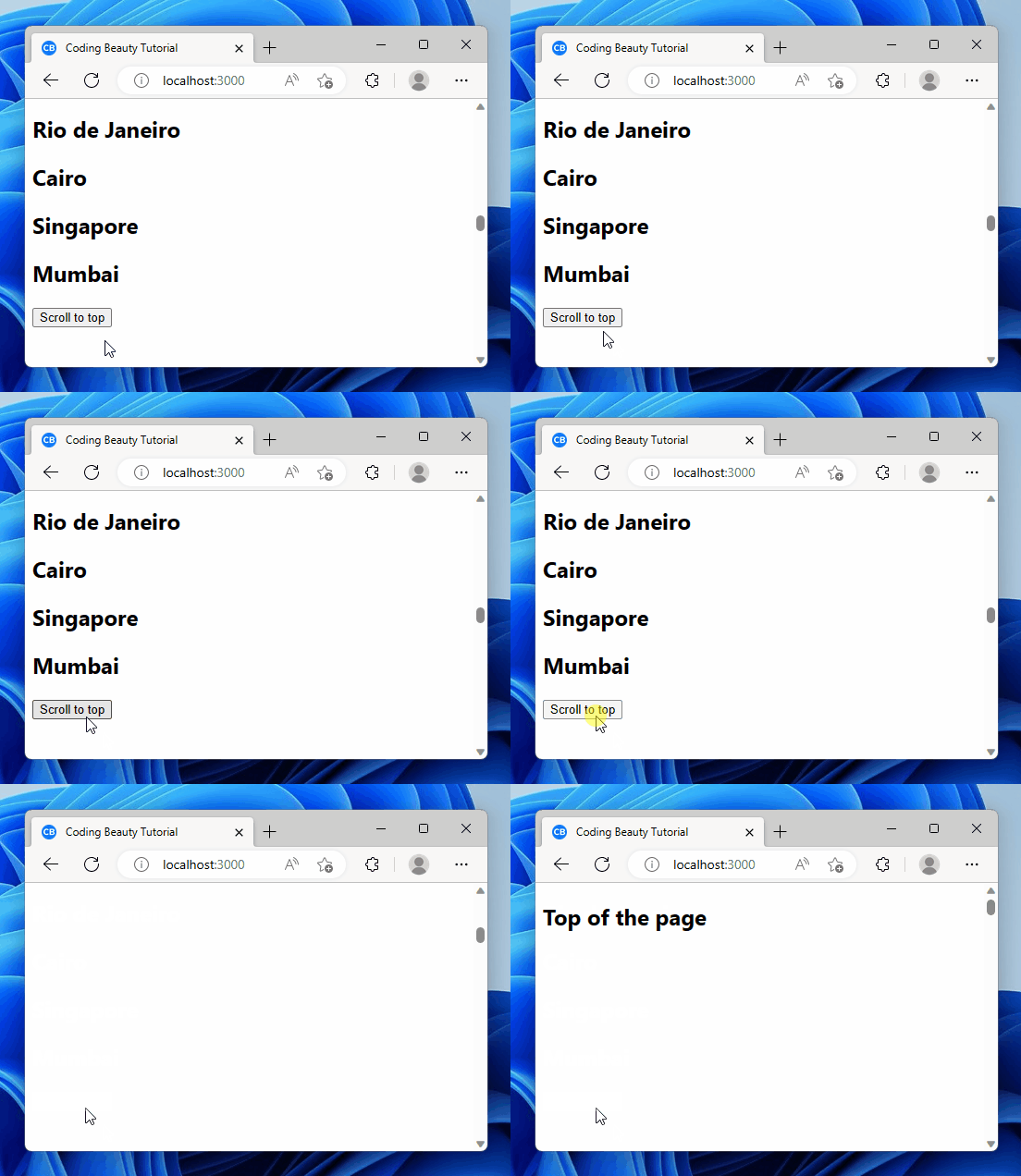
The window.scrollTo() method scrolls to a particular position on a page.
We could have called it with two arguments: window.scrollTo(0, 0).
But this overload of scrollTo() doesn’t let us set a smooth scroll behavior.
When behavior is smooth, the browser scrolls to the top of the page in a gradual animation.
But when it’s auto, the scroll happens instantly. We immediately jump to the top of the page.
We use the @click directive of the button to set a click listener.
This listener will get called when the user clicks the button.
Scroll to bottom of page in Vue.js
We use a different approach to scroll to the end of the page in Vue.js.
We create an element at the end of the page.
We set a ref on it.
Then we scroll to it by calling scrollIntoView() on the ref.
<template>
  <div>
    <h2>Top of the page</h2>
    <button @click="scrollToBottom">Scroll to bottom</button>

    <div style="height: 100rem" />

    <div>
      <h2 v-for="city in allCities" :key="city">{{city}}</h2>
    </div>

    <div style="height: 150rem" />

    <div ref="bottomElement"></div>
    <h2>Bottom of the page</h2>
  </div>
</template>

<script>
export default {
  data() {
    return {
      allCities: [
        'Tokyo',
        'New York City',
        'Paris',
        'London',
        'Dubai',
        'Sydney',
        'Rio de Janeiro',
        'Cairo',
        'Singapore',
        'Mumbai',
      ],
    };
  },
  methods: {
    scrollToBottom() {
      this.$refs.bottomElement.scrollIntoView({ behavior: 'smooth' });
    },
  },
};
</script>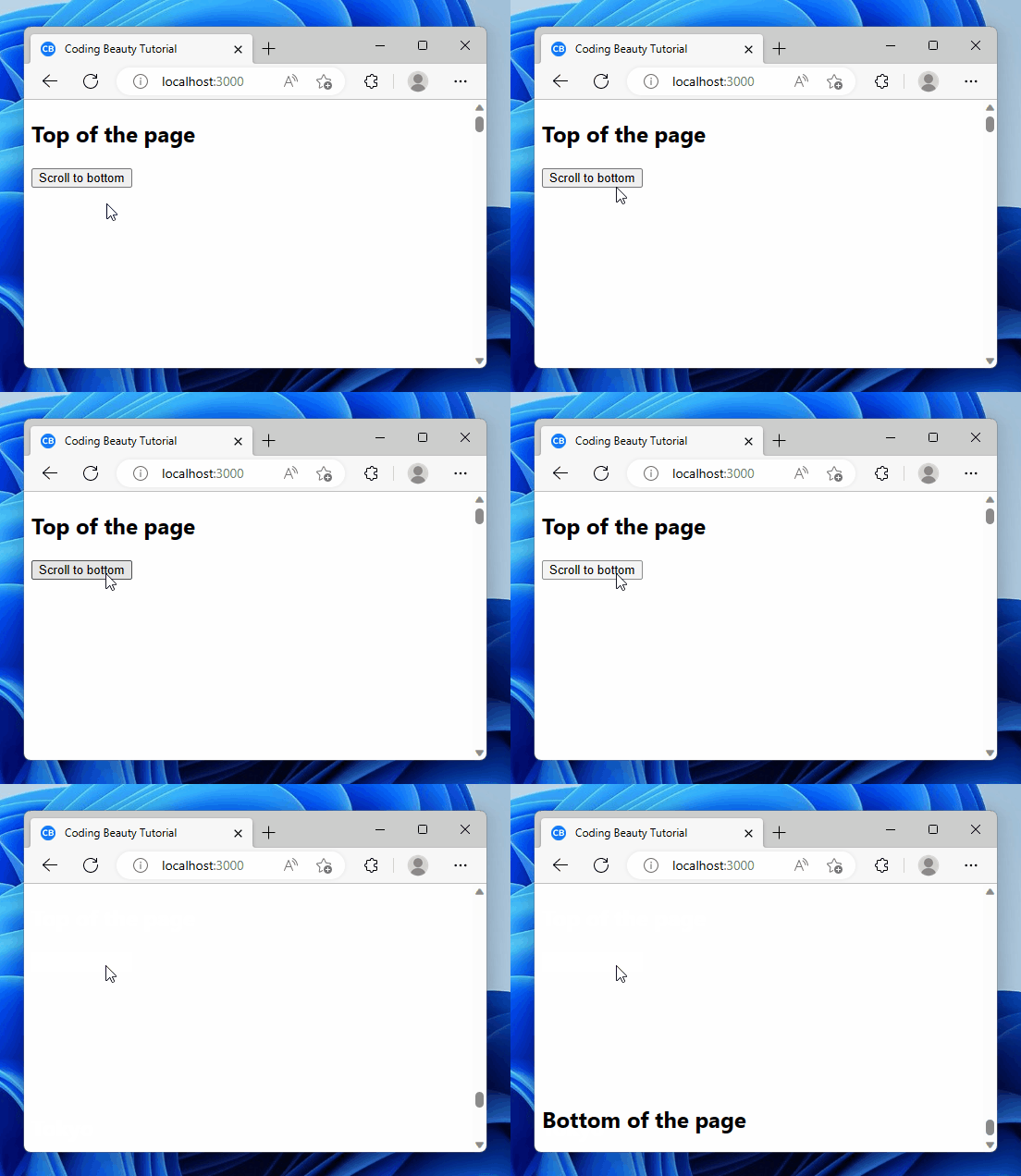
scrollIntoView() scrolls to a specific element on the page.
By calling it on the bottom element, we scroll to the page end.
Like scrollTo(), scrollIntoView() has a behavior option that controls the scrolling motion.
scrollToBottom() {
  this.$refs.bottomElement?.scrollIntoView({ behavior: 'smooth' });
}
smooth scrolls to the element in an animation.
auto jumps to the element on the page instantly. It’s the default.
To access the bottom element, we set a Vue ref on it.
To do this, we create a ref object and set the element’s ref prop to it.
<template>
  <div ref="bottomElement"></div>
</template>
Doing this lets us access the element’s HTMLElement object with this.$refs.bottomElement.
Vue refs are a way to register a reference to an element or a child component.
The registered reference will be updated whenever the component re-renders.
Key takeaways
- In Vue.js, to scroll to the top of a page, call
window.scrollTo()with{ top: 0, left: 0, behavior: 'smooth' }. - Setting
behaviorto'smooth'makes a gradual animated scroll to the top.'auto'causes an instant jump to the top. - To scroll to the bottom of a page in Vue.js, call
scrollIntoView()on a specific element.
Create a ref for it using therefattribute first. - Vue refs are used to create a reference to an element.
This allows access to its properties during the component’s lifecycle.
Every Crazy Thing JavaScript Does
A captivating guide to the subtle caveats and lesser-known parts of JavaScript.