
Claude Code has several powerful hacks and shortcuts that can save you hours and make your coding workflow much easier.
Here are 5 powerful Claude Code tricks you should start using.
1. Switch between modes with Shift + Tab
Did you know you can switch between Claude Code’s modes without leaving your current session?
Just press Shift + Tab to cycle through the available modes.
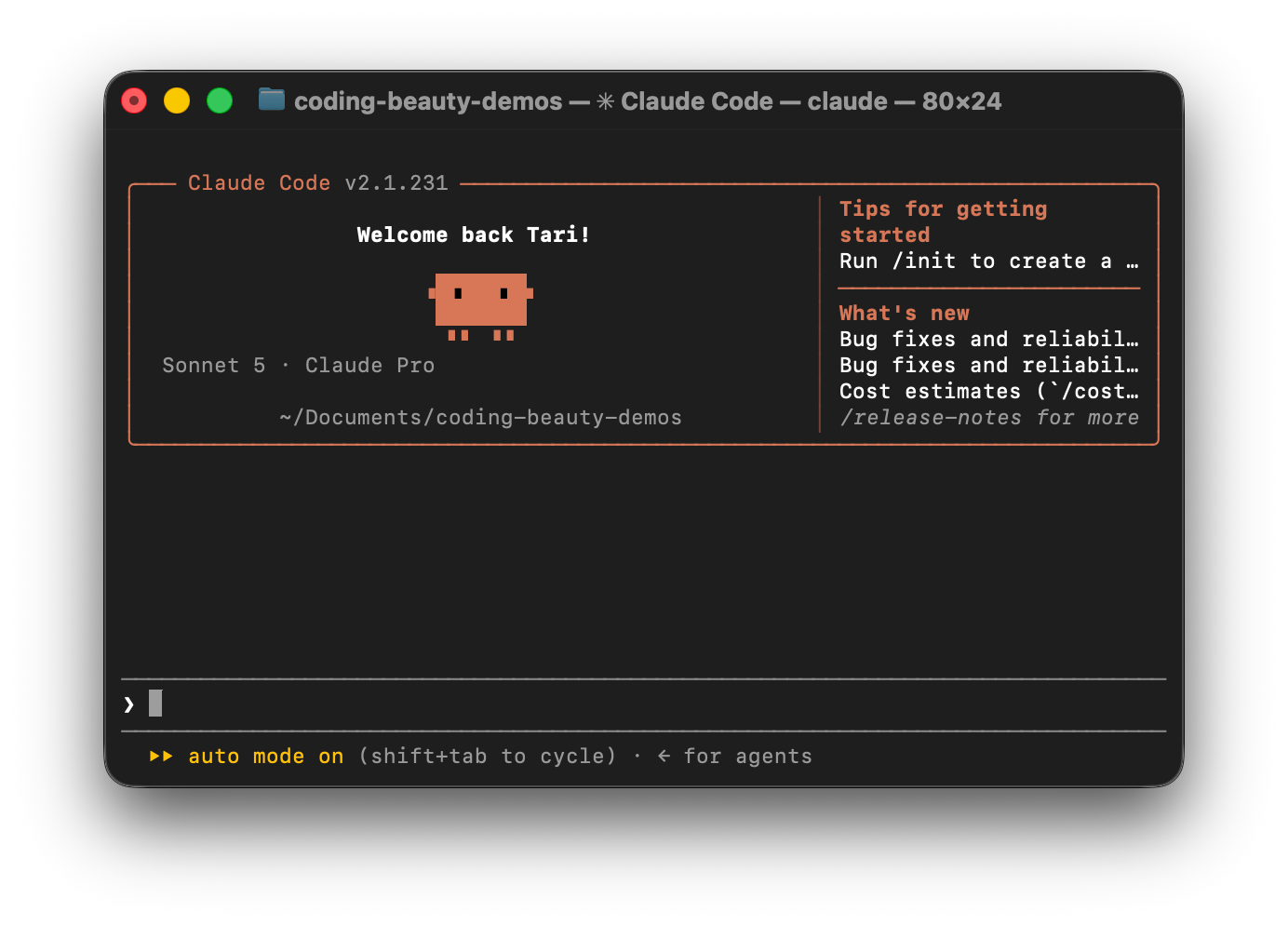
- Auto Mode: Claude automatically runs actions it considers safe and blocks risky ones (now the default).
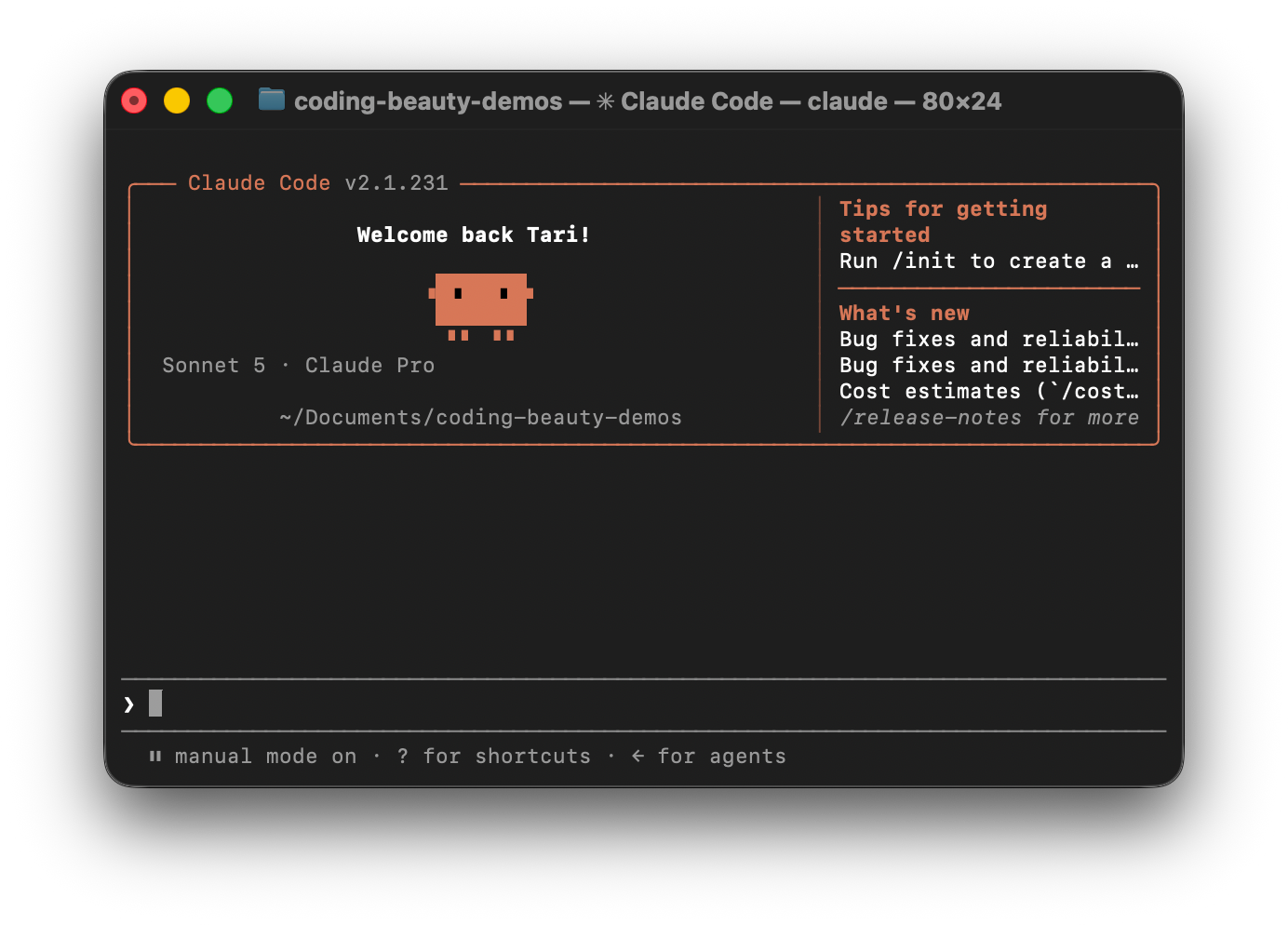
- Manual Mode: Claude asks for your approval before making most file changes or running commands.
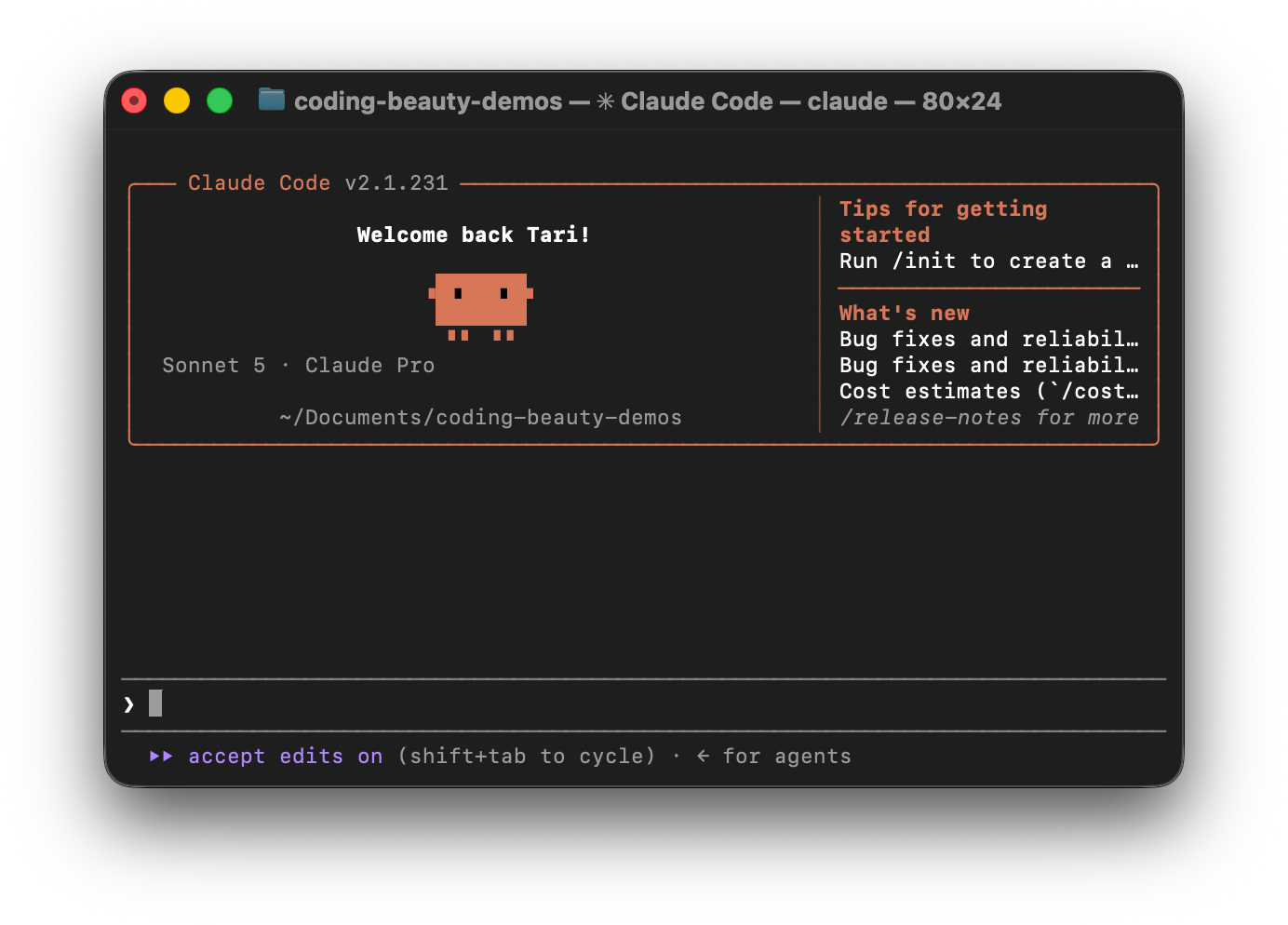
- Accept Edits Mode: Claude makes file edits without asking every time but still checks with you before running commands that need approval.
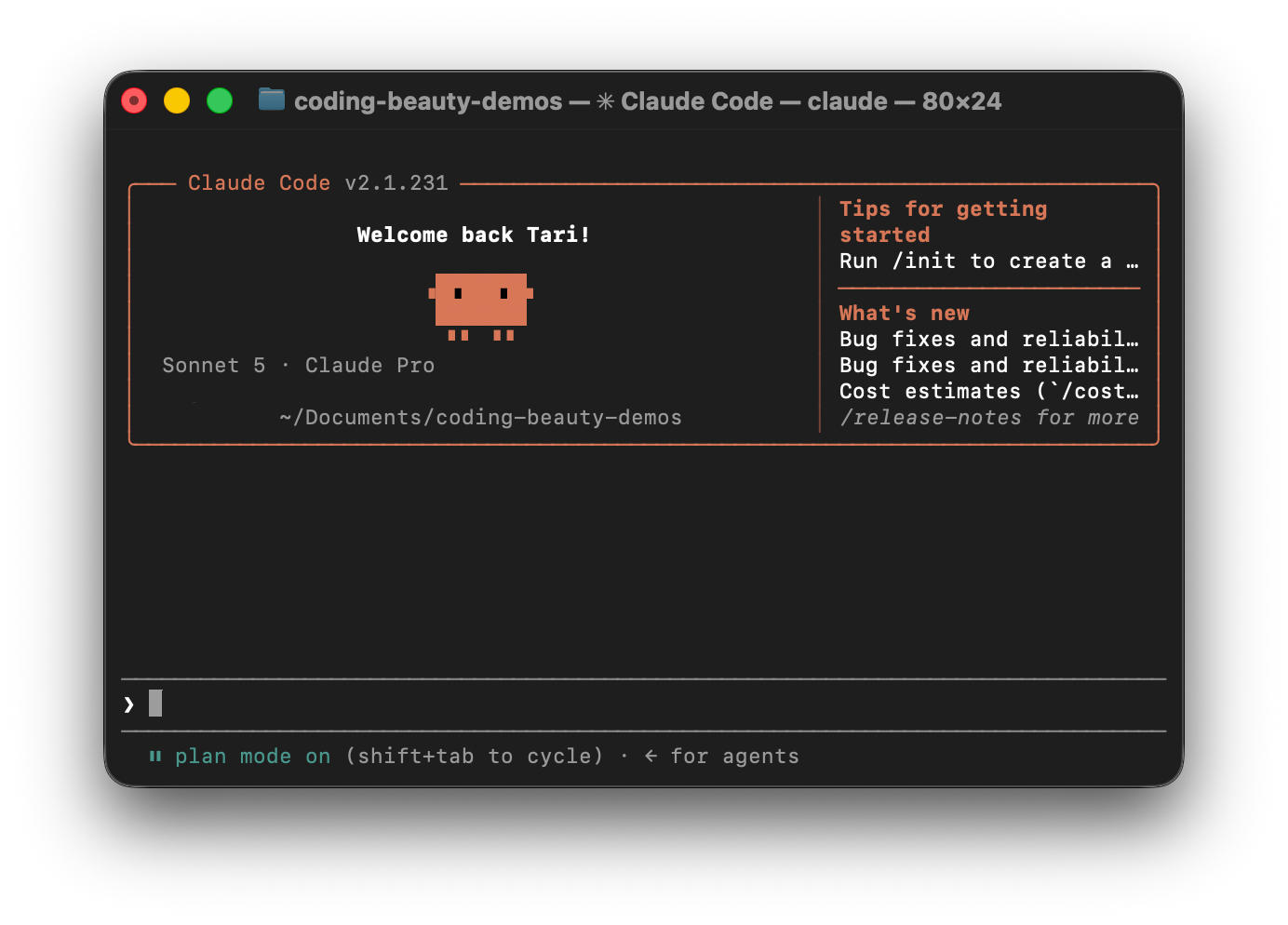
- Plan Mode: Claude studies your code and creates a plan before making changes.
Claude Code in Auto mode:
Claude Code in manual mode:
In Accept Edits mode:
In plan mode:
Let’s say you want to move your React app from JavaScript to TypeScript.
You could switch to Plan Mode and type:
Analyze this project and create a step-by-step plan
to migrate it from JavaScript to TypeScript.
Once you’re happy with the plan you can switch to Auto Mode and let Claude handle the migration while checking its actions for risks.
You can also switch to Manual Mode if you want to review changes yourself.
This gives you the freedom to choose how much control you want over Claude’s actions.
2. Send terminal output to Claude with | claude -p
You don’t always need to open Claude Code to ask a quick question.
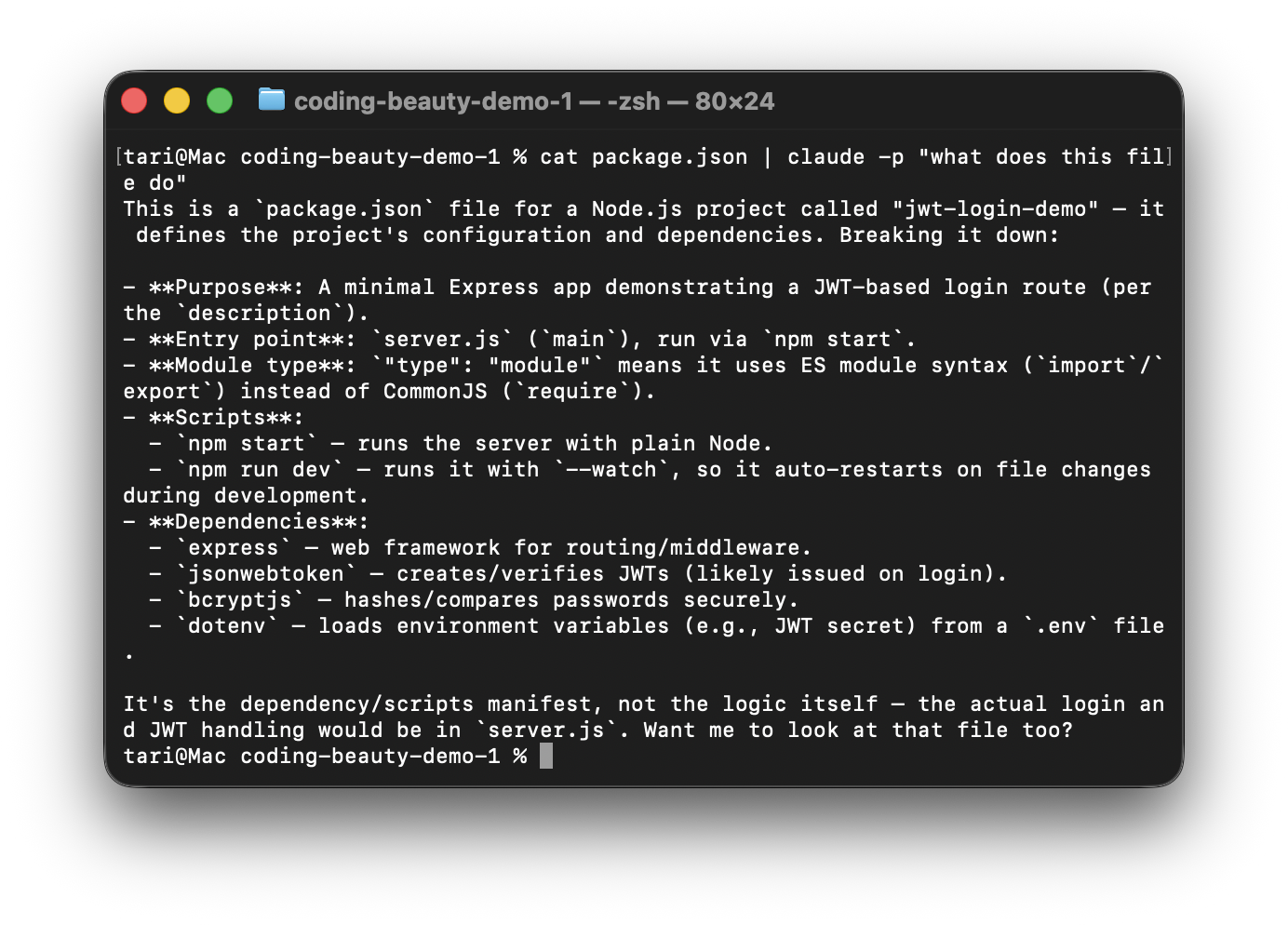
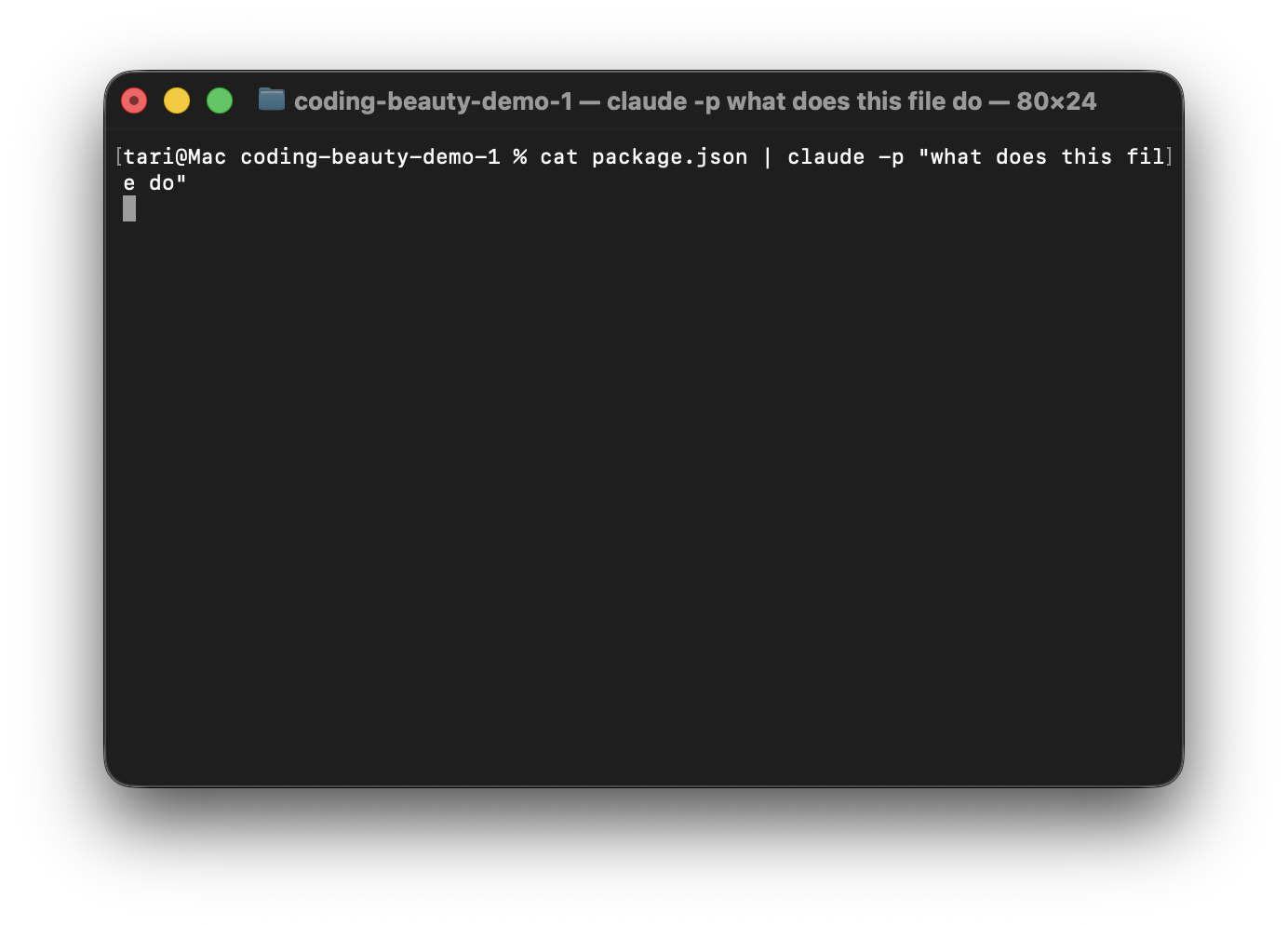
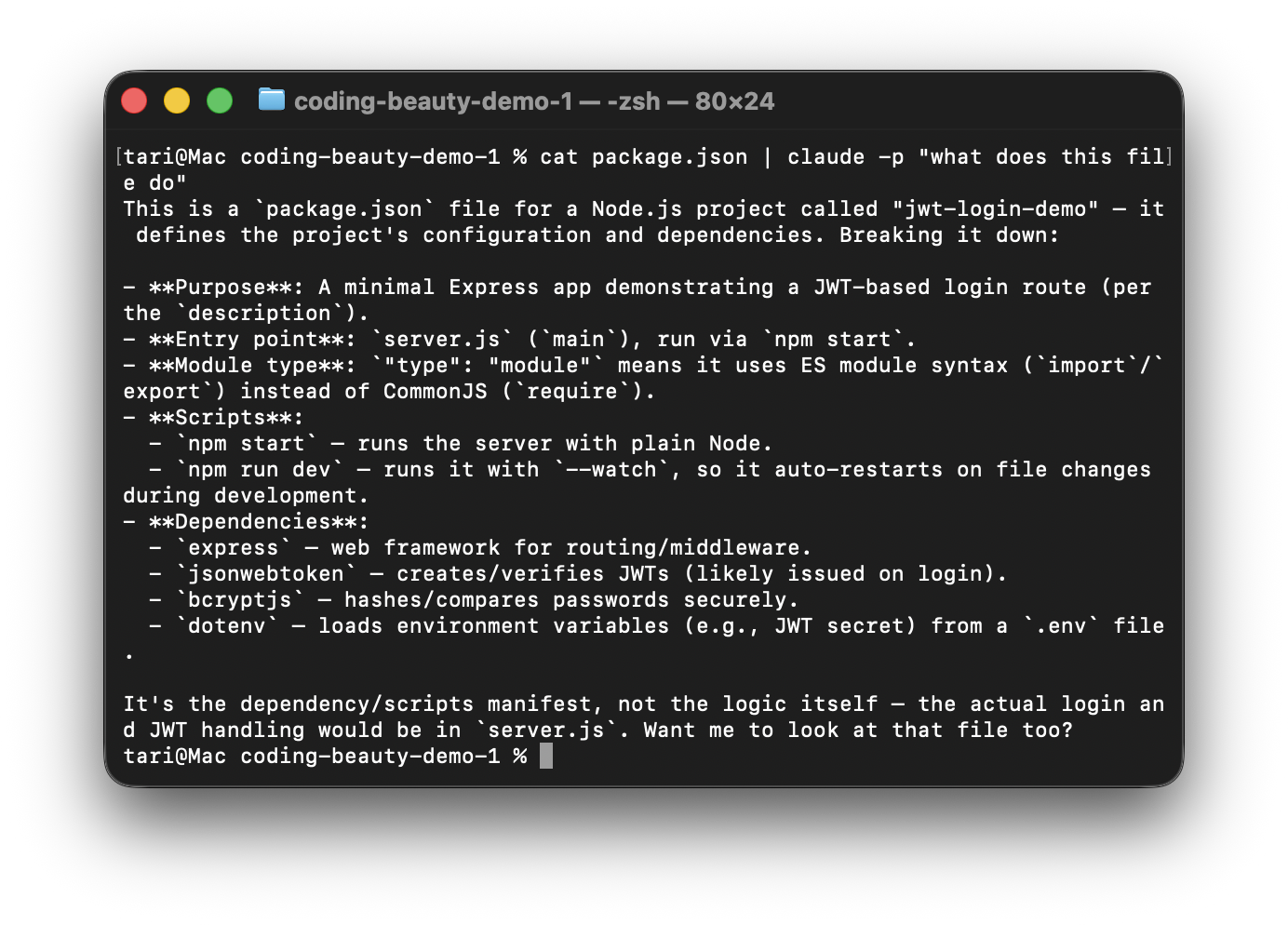
With claude -p you can send the output of a terminal command straight to Claude.
Using -p in Claude Code:
Done:
You can turn your Git changes into PR release notes:
git diff | claude -p "Summarize these changes into PR release notes."Or find errors in your application logs:
cat app.log | claude -p "Find uncaught exceptions and error stack traces."You can even ask Claude to explain why your tests are failing:
npm test 2>&1 | claude -p "Explain why these tests failed."This makes it easy to understand errors and review code changes without starting a full chat session.
3. Mention files instantly with @
Tired of typing long file paths or explaining which file you want Claude to work on?
Just type @ followed by the file or folder name.
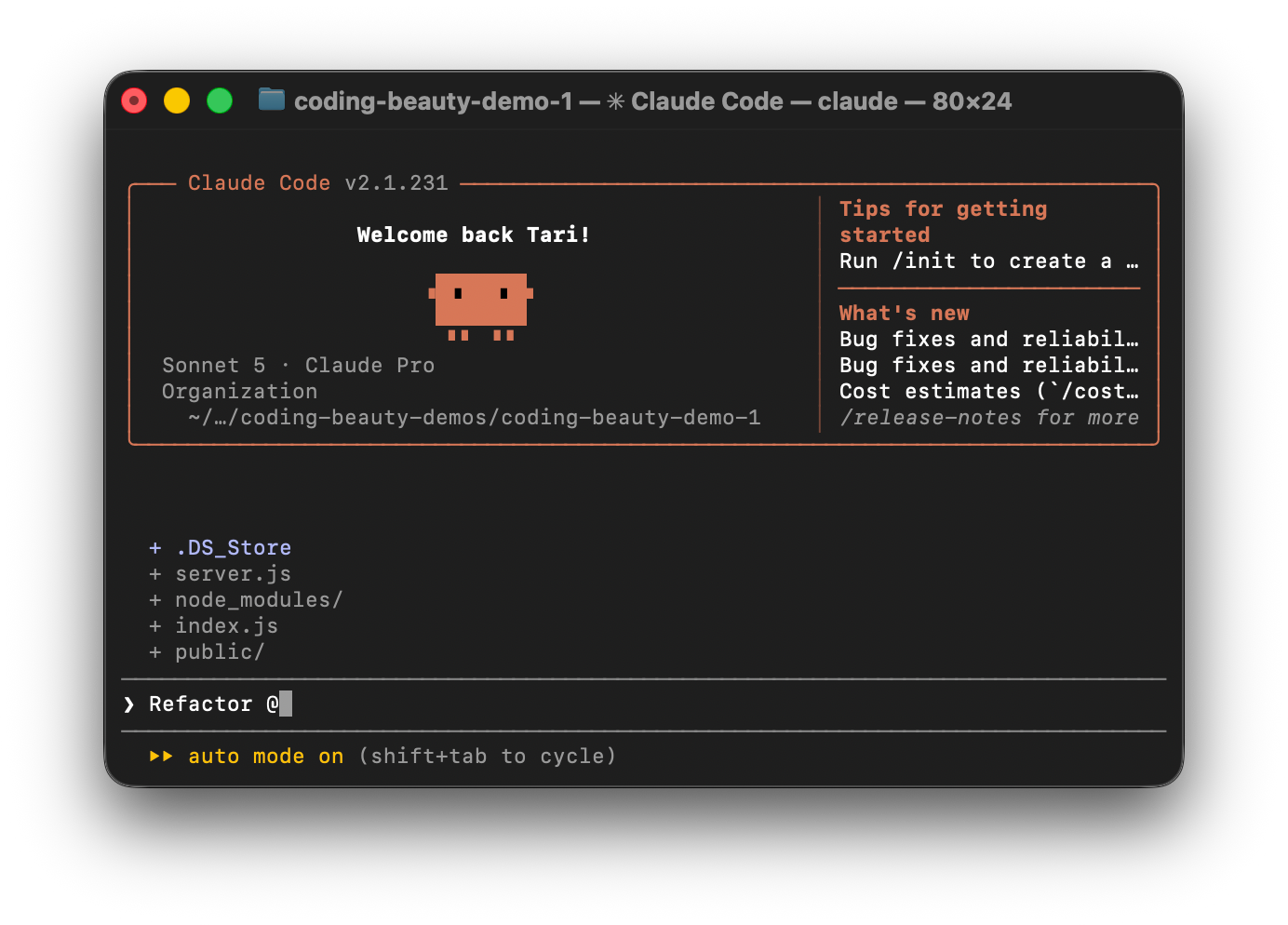
Let’s say you want Claude to refactor a file:
Refactor @src/utils/api.ts to use async/await.You can also ask it to compare two files:
Compare @src/components/Header.tsx and

@src/components/Navbar.tsx.
Find any repeated code or review an entire folder:
Check @src/services/ and suggest ways to improve error handling.This helps Claude focus on the exact files you want it to check. You spend less time explaining things and more time getting work done.
4. Run terminal commands with !
You don’t need to leave Claude Code whenever you want to run a terminal command.
Just add ! at the beginning of your command.
You can run your tests:
!npm testCheck your Git status:
!git statusOr build your project:
!npm run buildLet’s say Claude just helped you build a new feature. You can run !npm test right away to check if everything works.
If something fails you can ask Claude to help fix it without leaving the session.
5. Undo bad changes with double Esc
Ever asked Claude to change something only for it to break your code?
Instead of trying to undo every change yourself you can press Esc twice quickly.
You can also type:
/rewindThis opens a list of earlier checkpoints in your session.
You can go back to an earlier conversation or restore file changes. You can also do both.
Let’s say Claude changes your login system but users can no longer sign in.
Instead of fixing every file manually you can use /rewind to return to a checkpoint before the changes.
Just remember that rewind can’t undo every shell command or outside action. You should still use Git.
Final thoughts
Claude Code can do much more than write code for you.
With these five tricks you can plan changes and find errors faster. You can also work with files and run commands without leaving your session.
Sometimes getting better at Claude Code isn’t about writing better prompts. It’s about knowing the small shortcuts that save you time every day.