
OpenClaw is part of the growing class of super AI tools built to do way more than generate text.
It is an open-source personal AI assistant designed to operate across your own environment, connect to the tools and channels you already use, and help you carry out real tasks.
That is what makes it interesting.
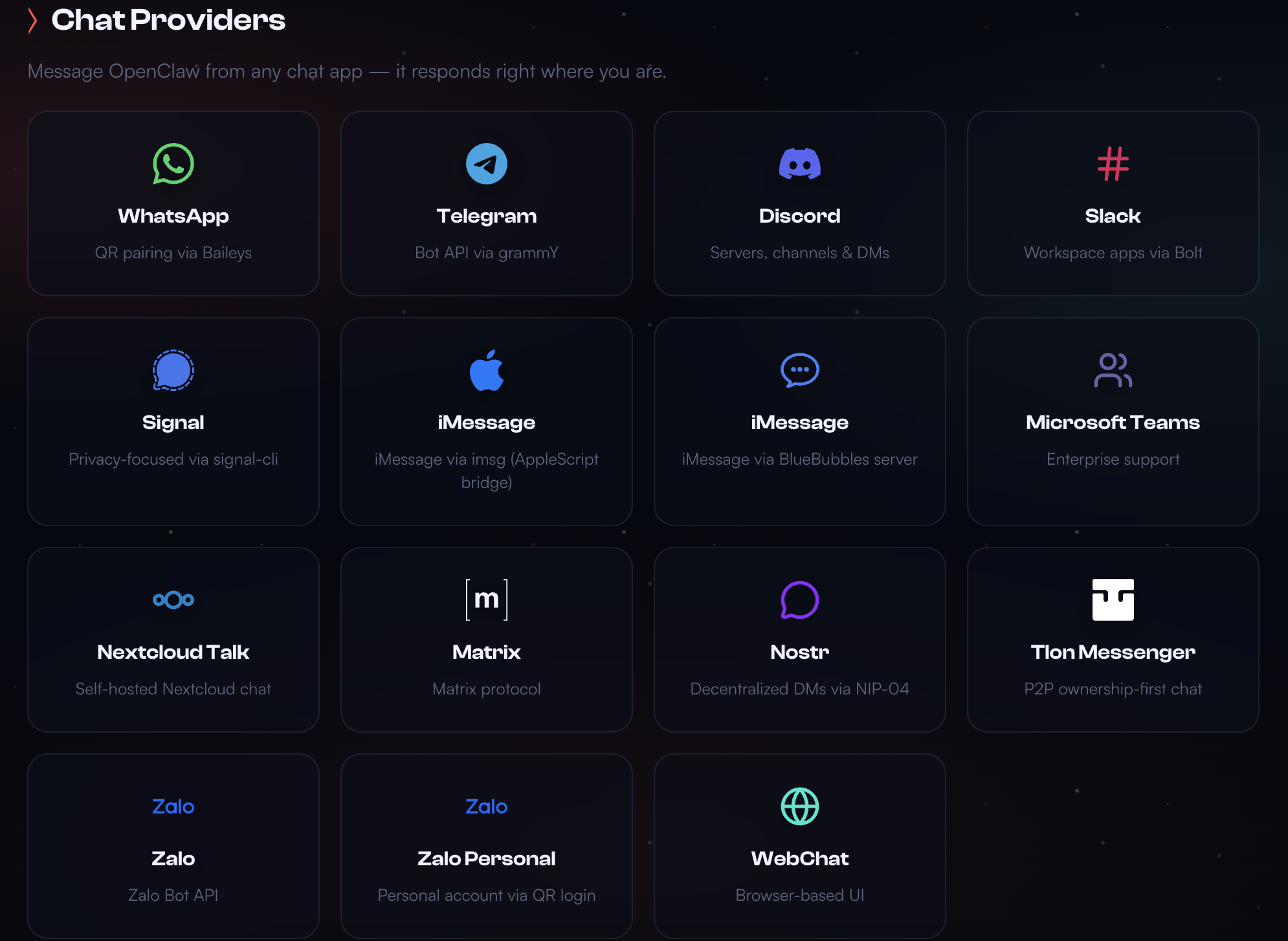
Rather than being just another interface for prompting a model, OpenClaw is built around the idea of a persistent assistant that can work through messaging platforms, dashboards, integrations, and configurable skills.
For people interested in practical AI systems, that makes it a tool worth paying attention to.
What OpenClaw actually is
OpenClaw is a local-first AI assistant platform built around a gateway system that serves as its control hub.
This gateway manages:
- sessions
- communication channels
- tools and integrations
- models
- automation and assistant behavior
Instead of being confined to a single app, OpenClaw can connect to the environments where you already communicate and work. It also provides a dashboard interface where you can manage, observe, and interact with the assistant directly.
In simple terms, OpenClaw is meant to function less like a single-purpose app and more like a customizable personal AI layer across your digital setup.
Why OpenClaw matters
What makes OpenClaw compelling is the combination of four things:
1. It runs on your own machine
This is one of the biggest selling points.
OpenClaw is designed to run locally on your own device rather than existing only as a distant hosted product. That gives it a different feel from tools that live entirely behind someone else’s interface and infrastructure.
For users who care about control, privacy, ownership, and having their assistant closer to their actual environment, this matters a lot. It means the system feels more personal, more grounded in your setup, and more capable of becoming a real part of how you work.
2. It is built for real usage, not just demos
OpenClaw is designed around practical workflows: messaging, coordination, personal operations, and task handling across tools. That makes it relevant to people who want AI to fit into daily work rather than remain isolated inside a single interface.
3. It is open source
Because OpenClaw is open source, users have more control over how it works, how it is configured, and how deeply it becomes part of their setup. That matters for people who care about ownership, customization, and flexibility.
4. It can become part of your actual environment
A lot of AI products still feel like separate destinations you have to visit. OpenClaw is interesting because it is designed to live much closer to your existing tools, channels, and routines.
That combination — local, open, practical, and integrated — is a big part of what makes it stand out.
What OpenClaw can do
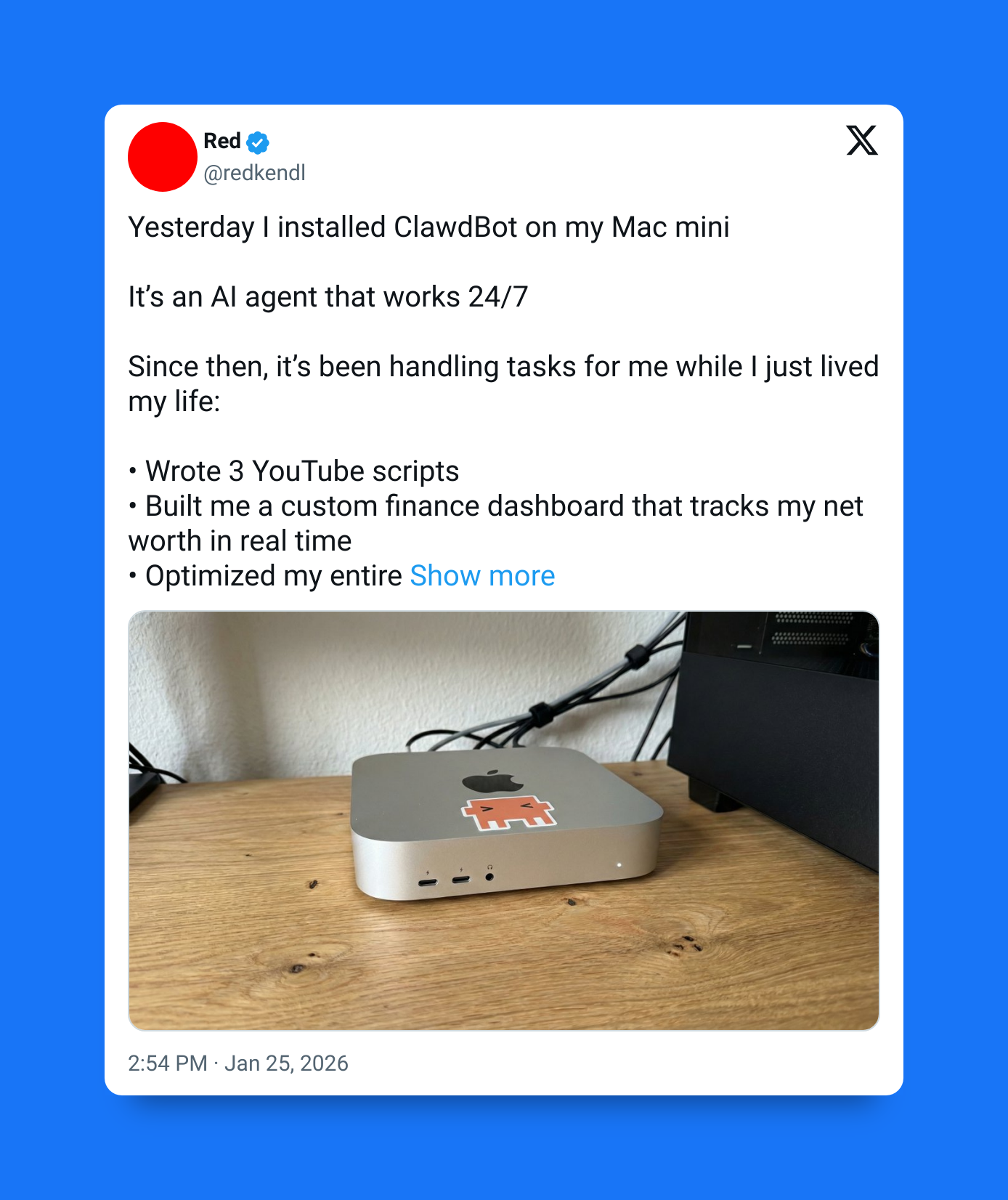
OpenClaw is built to act as a persistent assistant across multiple surfaces.
Some of its most important capabilities include:
Communication support
It can integrate with messaging platforms and help with handling conversations, reminders, coordination, and general communication workflows.
Personal operations
It can assist with practical day-to-day tasks such as managing schedules, organizing reminders, and helping coordinate actions across tools.
Cross-channel workflow support
Because OpenClaw can connect to multiple communication channels through one gateway, it is useful for people whose work is spread across different apps and systems.
Customization
OpenClaw supports configurable models, skills, channels, and workspace settings. That makes it flexible enough for users who want their assistant to match how they actually work.
How to get started with OpenClaw
The basic setup revolves around installation, onboarding, and launching the dashboard.
You can install OpenClaw with this script on Linux/Mac:
curl -fsSL https://openclaw.ai/install.sh | bash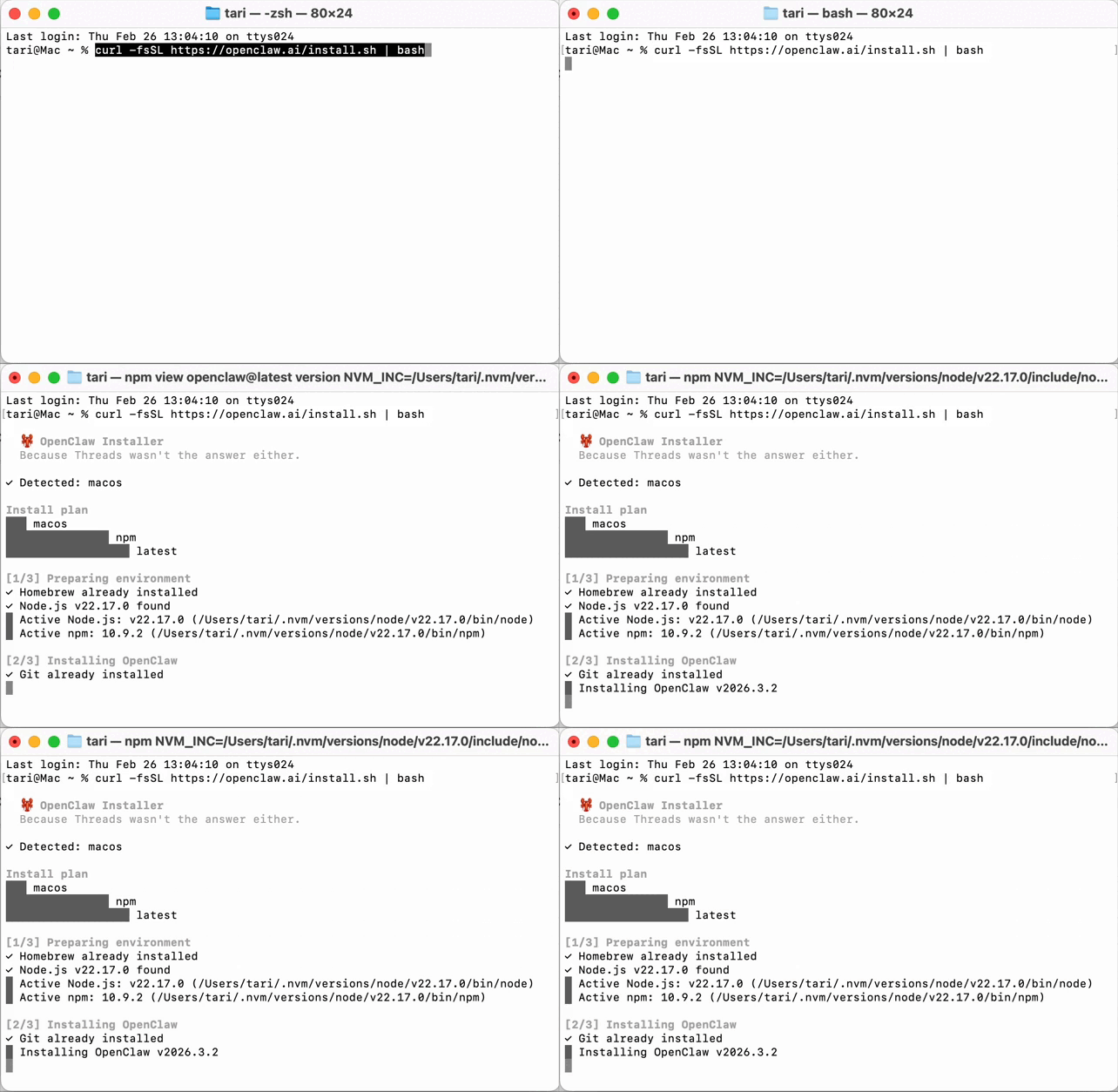
After installing OpenClaw on your target machine, the main setup step is running the onboarding wizard:
openclaw onboard --install-daemonThis process configures the core environment, including:
- the gateway
- workspace defaults
- authentication
- channels
- basic assistant settings
Once setup is complete, you can verify that the gateway is running:
openclaw gateway statusThen launch the dashboard:
openclaw dashboardThat gives you a direct interface for interacting with and managing your assistant.
The best way to start using it
The smartest way to start with OpenClaw is not to connect everything immediately.
Start with the dashboard first. Use it for a few simple tasks such as:
- summarizing messages
- drafting replies
- organizing a checklist
- planning tasks
- structuring a workflow
Once that feels stable and useful, begin adding channels and capabilities one step at a time.
That approach makes it easier to understand what the system is doing and where it is genuinely valuable.
Connecting messaging channels
One of OpenClaw’s strongest features is that it can connect to multiple communication platforms instead of forcing you into one interface.
Channel setup is handled through commands like:
openclaw channels loginFrom there, you can add channels interactively and bring the assistant into the communication environments you already use.
That is one of the core advantages of the system: your assistant becomes part of your actual workflow rather than something separate from it.
Skills, models, and customization
OpenClaw supports deeper configuration for users who want more control.
You can configure things like:
- model selection
- fallback behavior
- workspace defaults
- assistant skills
- authentication profiles
For technical users, this makes OpenClaw feel less like a packaged consumer product and more like a configurable AI environment.
Still, the best way to use that flexibility is gradually. Add capabilities when they clearly improve something real in your workflow.
A practical setup strategy
A sensible way to adopt OpenClaw is in stages:
Phase 1: install it and use the dashboard
Phase 2: test simple interactions
Phase 3: connect one messaging channel
Phase 4: add a few useful skills
Phase 5: expand integrations more broadly
This staged approach helps you avoid unnecessary complexity early on and makes troubleshooting much easier.
Security matters
Because OpenClaw can connect to real tools and communication systems, security needs to be treated seriously.
A few practical habits matter:
- install only from official sources
- keep the software updated
- begin with minimal permissions
- expand access gradually
- be careful about which systems and data you expose to it
The more operational power you give an assistant, the more deliberate you need to be about access and trust boundaries.
Who OpenClaw is best for
OpenClaw is especially appealing for people who:
- work across multiple communication platforms
- want a configurable AI assistant
- are comfortable with a more technical setup
- value open-source flexibility
- want an assistant that can integrate more deeply into their environment
It is less about instant convenience and more about control, extensibility, and real integration.
The bigger picture
OpenClaw matters because it points toward a more integrated model of personal AI.
Instead of existing as a single isolated app, an assistant like this can become part of the broader system you already use: your messaging, your tools, your routines, and your workflows.
That is why OpenClaw stands out.
It is not just about chatting with a flexible agent-agnostic AI. It is about building an assistant that can live inside your actual setup and become more useful over time.